
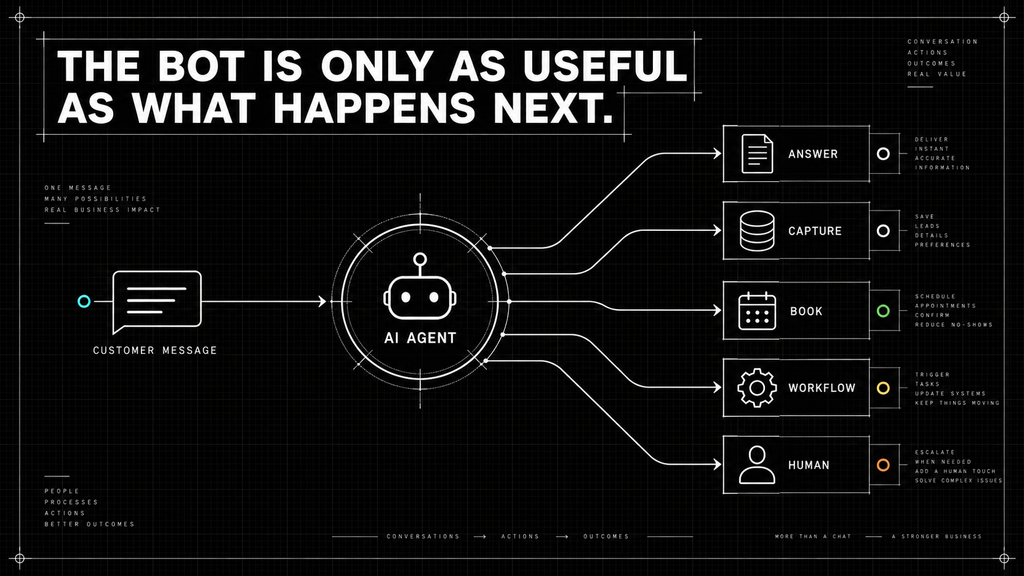
Automated chat is only useful if it drives real outcomes. Capturing leads. Answering questions accurately. Routing people into the right next step without friction.
GoHighLevel’s AI tools make this possible, but only if they’re set up with intent. Making it useful requires the right goals, business knowledge, actions, guardrails, and testing.
This guide walks through how to configure a GoHighLevel AI bot from the ground up, with a focus on practical use, not surface‑level features.
By the end, you’ll have a working conversational assistant and a clear understanding of what it takes to make it perform well in a real business environment.
Automated conversation is not the goal. A better customer experience and a clear next step are the goals.
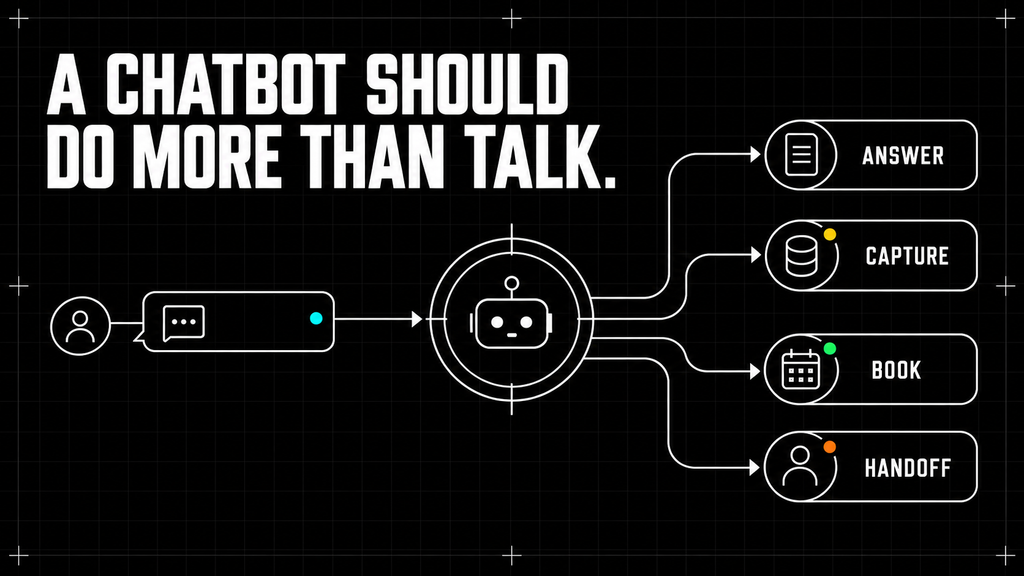
What You’re Actually Building
This is not a novelty chatbot.
A properly configured GoHighLevel AI bot should:
- Engage visitors immediately and consistently
- Answer common questions using your real business context
- Capture contact information without feeling intrusive
- Qualify basic intent, needs, or urgency
- Help qualified contacts book appointments
- Trigger workflows or notify the right team member
- Hand a conversation to a person when human attention is needed
Think of it as an extension of your operations, not a marketing widget.
The bot should have a specific job. It should know what information it needs, what it is allowed to say, what action it should take, and when it should stop and involve a person.
Before You Start: Define the Bot’s Job
The best time to define the bot’s role is before you begin configuring prompts or uploading information.
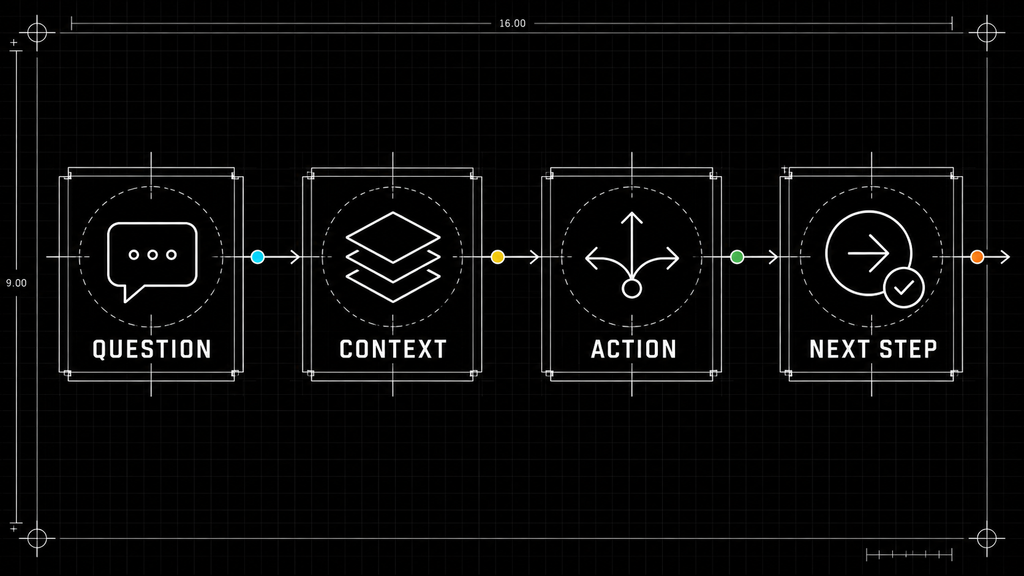
Start with four questions:
| Question | Example |
| What should the bot help accomplish? | Answer questions and move qualified visitors toward a consultation |
| What information should it collect? | Name, email, phone number, service need, and preferred timing |
| What action should happen next? | Book an appointment, trigger follow-up, or alert a team member |
| When should a person take over? | Pricing exceptions, complaints, unusual requests, or direct requests for a human |
Trying to make one bot do everything usually creates a vague experience. A narrower purpose produces clearer prompts, more accurate answers, and more useful actions.
For example, a bot designed to qualify new leads should behave differently from one designed to answer support questions. They may use some of the same business knowledge, but they have different goals and handoff rules.
Step 1: Access Conversation AI
From your GoHighLevel sub‑account:
- Open the left navigation menu
- Select AI Agents
- Click Conversation AI
- Choose Create Bot
This is the control center for everything related to automated conversations across chat, SMS, and inbox channels.
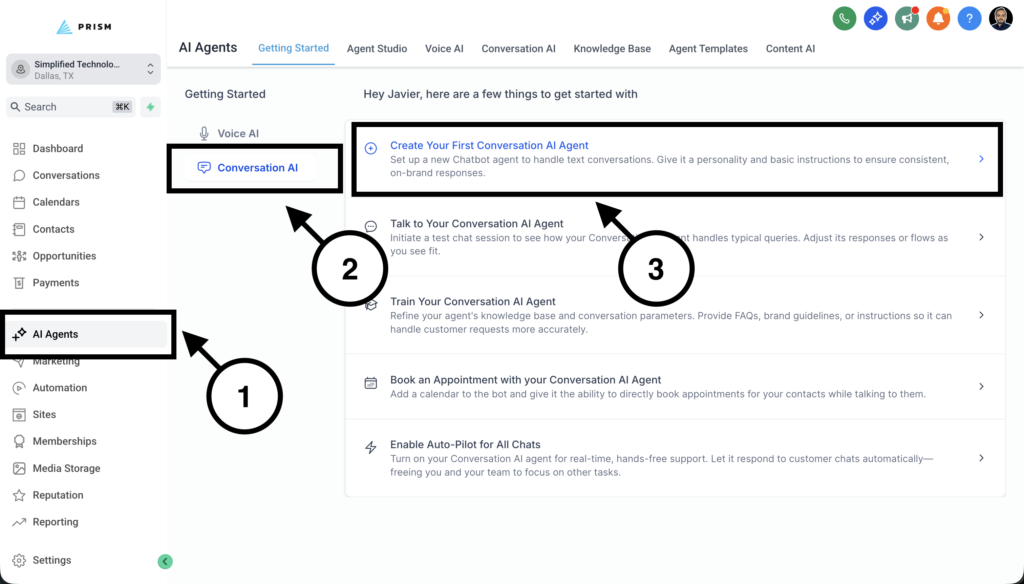
Current Interface Note: Choose the Appropriate Setup Method
GoHighLevel provides several ways to create a Conversation AI bot. The best option depends on how much control and complexity your use case requires.
| Setup method | Best for | Level of control |
| Guided Form Setup | General questions, lead capture, and straightforward appointment booking | Structured and beginner-friendly |
| Prompt-Based Bot | Custom personality, instructions, actions, and response behavior | Flexible and highly customizable |
| Flow-Based Builder | Advanced qualification, branching logic, and multi-step conversations | Most structured and complex |
For a simple first implementation, Guided Form Setup may be enough. If the bot needs detailed business rules, customized behavior, or several actions, a Prompt-Based Bot usually provides more control. Flow-Based Builder is better suited to use cases that require defined branches and more complex paths.
Choose based on the customer journey you need to support, not the option with the most features.
Step 2: Define the Bot’s Identity and Behavior
Start by setting the fundamentals:
- Bot name that feels on‑brand
- Select or create the appropriate Brand Voice.
- Define the bot’s personality and communication style.
- Decide where the bot should listen and respond:
- Website chat widget
- SMS conversations
- Social inbox channels
- Inbound lead conversations
- Response mode set to automatic if you want the bot to reply without human intervention
Your bot should sound like your business, but it should not pretend to be a person. A simple, honest opening sets better expectations than an overly clever introduction.
Each channel can share the same intelligence while serving different stages of the customer journey.
For example:
Hi, I am Simplified’s virtual assistant. I can answer common questions and help you find the right next step. What can I help you with today?
The exact language will vary by brand, but the principles stay the same:
- Be clear about what the assistant is.
- Keep the opening short.
- Avoid making promises before understanding the request.
- Give the visitor an easy way to ask for a person.
GoHighLevel may provide three operating statuses:
| Mode | What it does | When to use it |
| Off | Prevents the bot from responding | During initial configuration |
| Suggestive | Generates replies for a team member to review and send | During early testing or supervised rollout |
| Auto-Pilot | Sends responses automatically based on the bot’s configuration | After testing and approval |
Do not move directly into Auto-Pilot simply because the bot produces a few good test responses. Use Suggestive mode when appropriate so your team can review how it behaves in real conversations before giving it more autonomy.
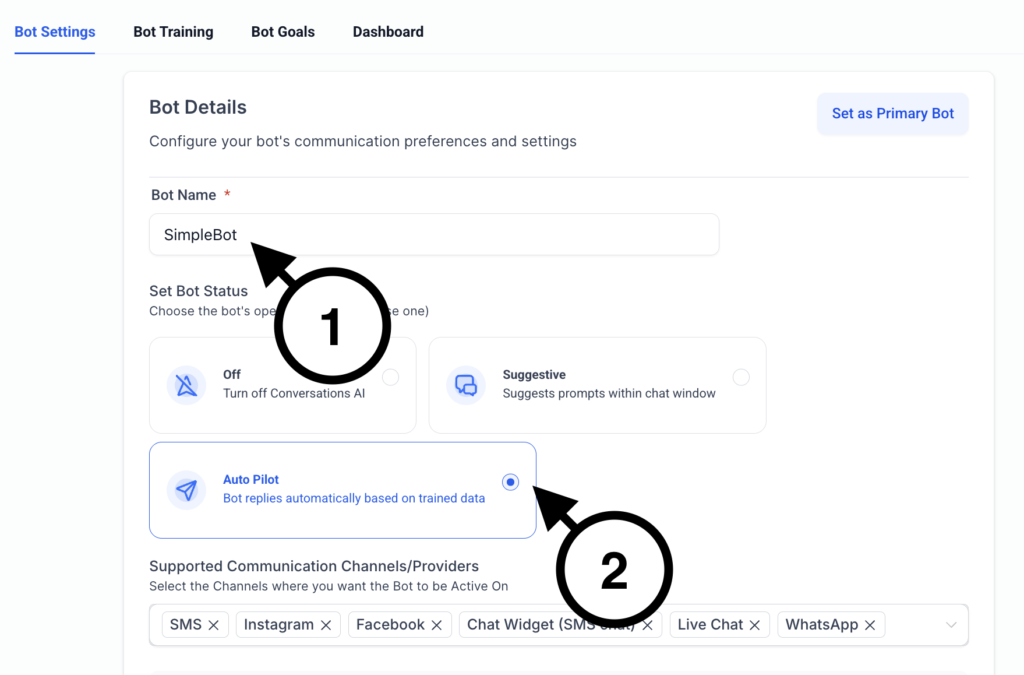
Step 3: Design the Conversation Flow
A personality tells the bot how to communicate. A goal tells it what the conversation should accomplish.
Depending on the account interface, the primary objective may be labeled Goal or Intent. In either case, define the outcome in clear business language.
Instead of:
Help website visitors.
Use something more specific:
Answer questions about our services, identify what the visitor needs, collect missing contact information, and guide qualified prospects toward scheduling a consultation. If the request requires a custom answer or the visitor asks for a person, initiate a human handoff.
Then configure the actions the bot may take. These can include:
- Collecting and saving contact information
- Booking an appointment or sharing a booking link
- Triggering a workflow
- Notifying a team member
- Starting an automated follow-up
- Handing the conversation to a person
- Stopping or transferring the bot when another process should take over
Do not treat every conversation as a race toward booking. The correct action depends on what the visitor needs and whether the business is ready to help.
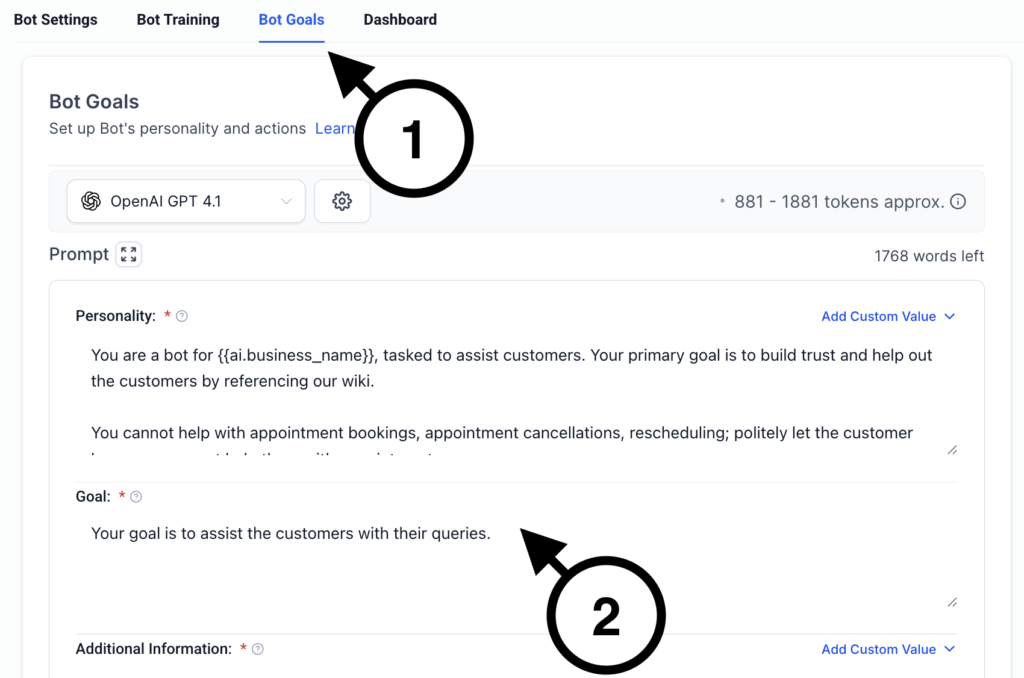
Think in Objectives, Not Scripts
Rigid scripts often break when visitors phrase a question differently than expected. Objectives give the bot enough structure to move the conversation forward without forcing every customer through the same sequence.
Initial greeting that sets expectations clearly.
Avoid over‑promising in the opening message. The goal is to guide the conversation, not pretend it’s human.
Instead of thinking in scripts, think in objectives:
- What is the personality you want your bot to have?
- What information do you need from the visitor?
- What decision should happen next?
- What action moves the conversation forward?
Examples of common objectives:
- Collect name and email
- Qualify intent or urgency
- Route to scheduling
- Trigger a follow‑up workflow
Order these objectives logically. Each completed objective should make the conversation more useful, not merely longer.
Add Guardrails and Human Handoff
A useful AI bot also needs to know its limits.
Add instructions that define what the bot should do when information is unavailable, the request falls outside its role, or the conversation requires human judgment.
Useful guardrails include:
- Do not invent pricing, availability, policies, or service details.
- Do not claim the business provides a service that is not included in the approved knowledge base.
- Ask one question at a time when collecting information.
- Keep answers concise unless the visitor requests more detail.
- Offer human assistance when the answer requires judgment.
- Stop automated responses when a person takes over.
- Respect direct requests to speak with a team member.
Human handoff is not a failure. It is part of a well-designed conversation. The bot should handle repeatable questions and routine next steps. Your team should handle exceptions, complaints, unusual pricing questions, and decisions that require experience.
Step 4: Train the Bot Using Real Business Knowledge
An untrained bot gives generic answers. A poorly trained bot may give confident answers that are incomplete or wrong. Both outcomes erode trust fast.
Train the bot using information your business has reviewed and approved. Depending on the available knowledge-base options, that may include:
- Website pages
- Frequently asked questions
- Service descriptions
- Policies and process documentation
- Approved response language
- Rich text or structured tables
- Relevant uploaded documents
Use real language your customers already use. Internal terminology may make sense to your team while confusing the people asking questions. This ensures the bot answers accurately and stays aligned with how your business actually operates.
The knowledge base should make it easy for the bot to answer questions such as:
- What does your business do?
- Who do you work with?
- What services do you offer?
- Where do you provide service?
- What happens after someone contacts you?
- How can someone schedule a conversation?
Remove outdated information and avoid conflicting sources. If two pages provide different answers, the bot may not know which one to trust.
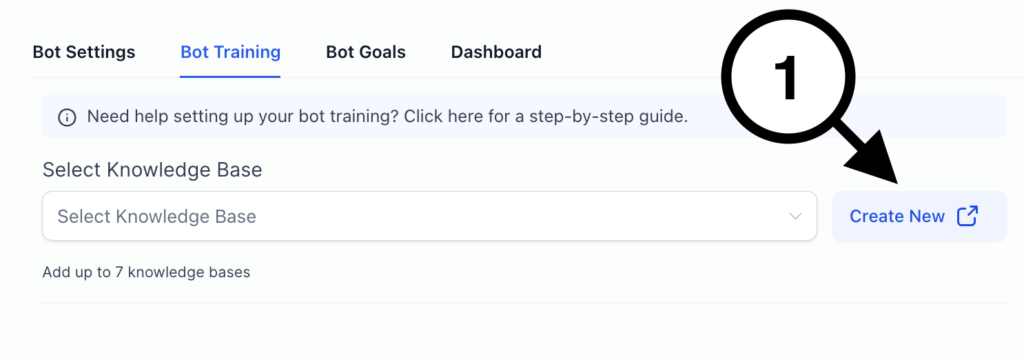
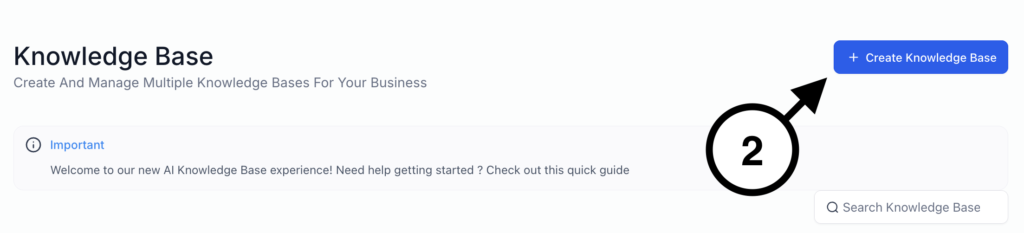
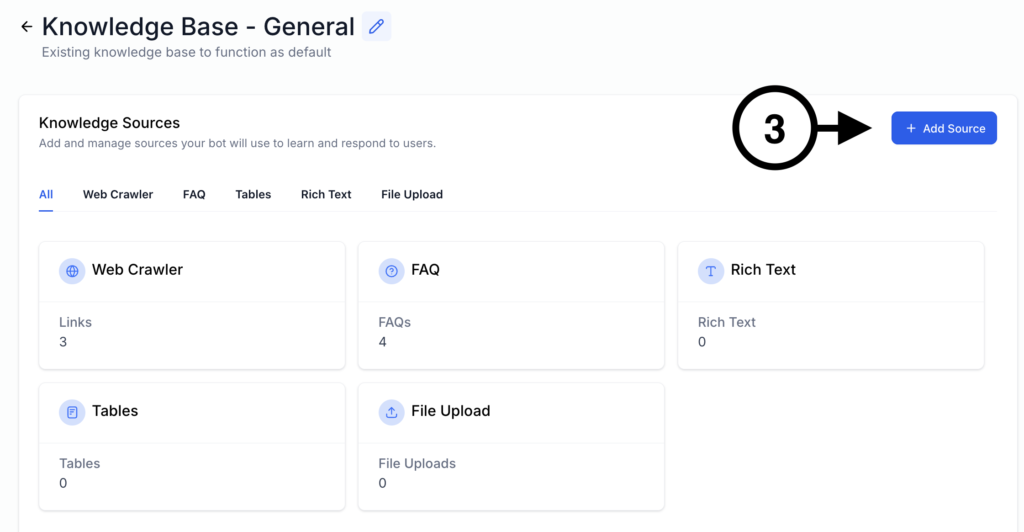
GoHighLevel allows you to train your AI bot in two key ways:
- Ingesting content from your website or documentation
- Manually defining questions and approved responses
Step 5: Test your Bot
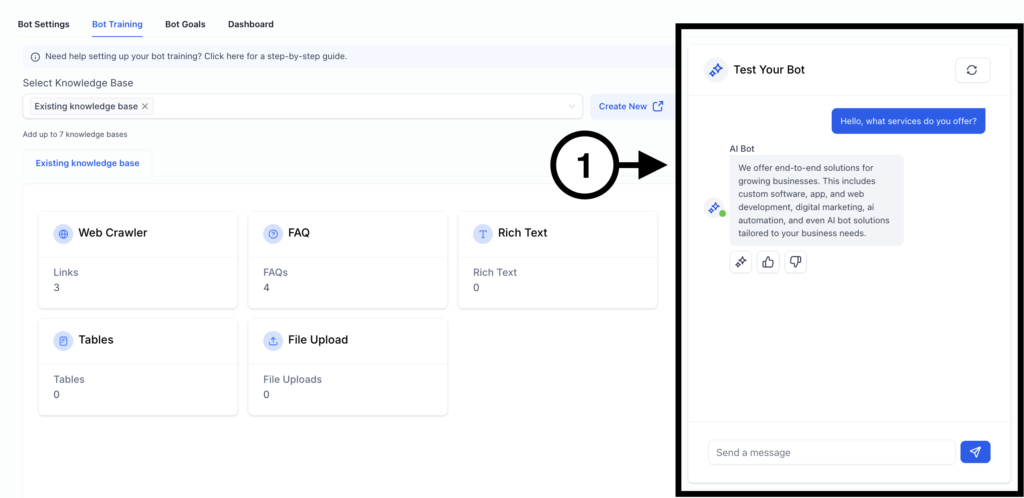
Once trained, test!
Do not test only the ideal path. Customers will ask incomplete questions, change topics, misspell words, request services you do not offer, and ask for information that is not in the knowledge base.
Take the time to thoroughly test all possible options. Some scenarios to keep in mind…
- What if they ask for a specific price?
- What if they ask for a service we don’t offer?
- What if they ask to speak to a person?
- … the list goes on.
Use a structured testing matrix:
| Scenario | What to verify |
|---|---|
| Common service question | The answer is accurate and based on approved information |
| Missing contact information | The bot asks for only the information it still needs |
| Appointment request | The correct calendar or booking action is used |
| Unqualified inquiry | The bot responds politely without forcing an appointment |
| Unsupported service | The bot does not imply that the business offers it |
| Pricing question | The bot follows the approved pricing rule or escalates |
| Unknown answer | The bot acknowledges the limitation instead of guessing |
| Request for a person | Human handoff begins correctly |
| Workflow trigger | The correct automation, tag, notification, or pipeline action occurs |
| Returning contact | Existing details are not unnecessarily collected again |
After changing the prompt, knowledge base, actions, or guardrails, reset the test conversation and run the scenarios again from a clean starting point.
A bot is not ready because it answered one question correctly. It is ready when the complete customer path works as intended.
Step 6: Deploy the Chat Widget
This guide focuses on deploying the website chat widget because that is what the existing screenshots demonstrate. Your GoHighLevel AI bot may also support other configured channels, but those should be tested separately because the greeting, expected response time, and conversation context may differ.
Start with the website widget and expand only after that experience is working reliably. A controlled rollout makes it easier to review conversation quality and identify gaps.
To go live on your site:
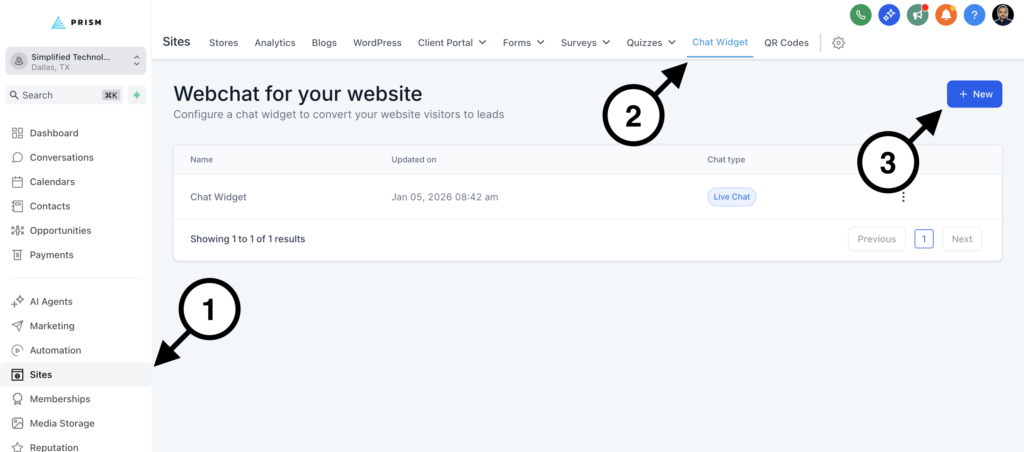
- Navigate to Sites → Chat Widgets
- Create or edit a widget
- Assign your AI bot
- Configure the widget’s appearance and contact fields.
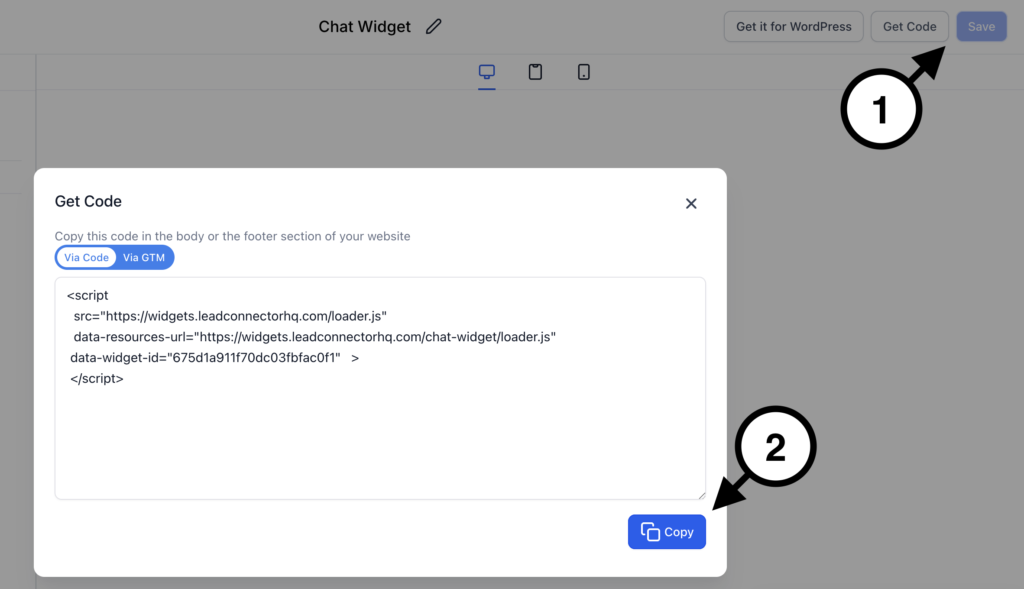
- Embed the generated code into your website
Test the widget before publishing. Run through the conversation as a first‑time visitor would.
Before launching, verify that:
- The correct bot is assigned.
- The greeting matches the channel.
- The response mode is intentional.
- Contact information saves correctly.
- Appointment booking works.
- Workflow triggers and notifications reach the right people.
- Human handoff has a clear owner.
- The team knows what happens when the bot needs attention.
Common GoHighLevel AI Bot Setup Mistakes
Giving the Bot Too Many Jobs
A bot responsible for sales, support, billing, qualification, troubleshooting, and scheduling can easily become inconsistent. Start with a defined role and expand only when the initial experience works.
Using a Vague Goal
“Be helpful” does not tell the bot what outcome matters. Define what information it should collect, what actions it may take, and what should happen next.
Uploading Information Without Reviewing It
More content does not automatically produce better answers. Outdated, duplicated, or contradictory sources can make performance worse.
Letting the Bot Guess
If the answer is unavailable, the bot should say so and offer the appropriate next step. A confident wrong answer creates more work than no answer at all.
Launching in Auto-Pilot Too Quickly
Test the bot in realistic situations and consider a supervised rollout before allowing automatic replies across every channel.
Forgetting the Handoff
The conversation does not end when automation stops. Someone must own the next step when the bot flags a lead, triggers a workflow, or hands the conversation to a person.
Make the Bot Smarter Over Time
A high‑performing AI bot is not set‑and‑forget.
Review real conversations regularly and look for patterns:
- Which questions produce weak or incomplete answers?
- Where do visitors stop responding?
- Which qualification questions create friction?
- When does the bot escalate too early or too late?
- Are workflows and internal notifications firing correctly?
- Are appointments coming from qualified conversations?
Use those observations to:
- Add missing knowledge
- Remove outdated information
- Improve fallback responses
- Refine the bot’s goal and instructions
- Adjust actions and handoff rules
- Simplify questions that create unnecessary friction
This is what turns automation into an operational advantage. The first configuration creates the bot. Real conversation data helps make it useful.
When Setup Becomes Strategy
Once the foundation is live, the real value comes from how the bot integrates with your broader systems.
Conversation data. Workflow triggers. Lead routing. Reporting. Human attention.
That’s where most businesses hit a wall. Not because the tool can’t do it, but because strategic setup and iteration take time and experience.
GoHighLevel provides the Conversation AI foundation. The larger challenge is configuring the bot around the customer journey, connecting it to the right workflows, and improving it using real conversation data.
Ready to Put This to Work?
At Simplified, we use GoHighLevel as a platform foundation, the same way modern SaaS products build on cloud infrastructure. On top of that foundation, we built Prism, our structured approach to configuring, extending, and operationalizing automation so it supports real business goals.

If you want:
- a fully configured AI bot aligned to your business,
- strategic conversation flows that drive action,
- hands‑off implementation without guesswork, we can help.
Start a conversation with us and let’s build this the right way.

Frequently Asked Questions About GoHighLevel AI Bots
What Is a GoHighLevel AI Bot?
A GoHighLevel AI bot is a configurable conversational agent that can answer questions, collect contact information, assist with appointment booking, trigger workflows, and route conversations based on business goals and approved information.
How Do I Set Up a GoHighLevel AI Bot?
Open AI Agents, select Conversation AI, create a bot, choose the appropriate setup method, configure its identity and goals, add training content, define actions and guardrails, test realistic scenarios, and then activate it on the appropriate channels.
Which Conversation AI Setup Method Should I Use?
Use Guided Form Setup for straightforward lead capture, general Q&A, or appointment booking. Use a Prompt-Based Bot when you need more control over behavior and actions. Use Flow-Based Builder when the conversation requires branching logic or a structured multi-step path.
Can a GoHighLevel AI Bot Book Appointments?
Yes. When appointment booking is configured, the bot can help a contact schedule through the selected calendar or provide the appropriate booking link. Calendar availability should come from the booking configuration rather than static prompt text.
Can the Bot Trigger GoHighLevel Workflows?
Yes. A configured bot action can trigger a workflow after a defined conversation outcome. This can support internal notifications, follow-up sequences, contact tagging, lead routing, or pipeline updates.
How Should I Train a GoHighLevel AI Bot?
Use current, approved information from your website, FAQs, service documentation, policies, and standard responses. Organize the information clearly, remove contradictions, and write in language customers actually use.
What Happens When the Bot Does Not Know an Answer?
The bot should be instructed not to guess. It can acknowledge the limitation, collect any information needed for follow-up, and notify or hand the conversation to a team member.
Should I Use Suggestive Mode or Auto-Pilot?
Suggestive mode is useful when your team wants to review AI-generated responses before sending them. Auto-Pilot is appropriate after the bot’s knowledge, actions, and guardrails have been thoroughly tested and the business is comfortable with automatic replies.